
ISB7 Login Problems and Fixes — Complete Troubleshooting Guide Pakistan
Cannot log in to ISB7? Every login problem Pakistani players face is covered here with the exact fix for each one. From wrong password to page not loading to account locked — find your issue and fix it fast.
Updated: June 2026
By ISB7 Team
|
1
Check your internet connection
|
2
Check caps lock is off
|
|
3
Confirm phone number has no leading zero
|
4
Close and reopen the app
|
|
5
If password is wrong use Forgot Password on the login screen
|
|
Table of Contents
| 1. How to Login to ISB7 | 2. Login Not Working — Causes |
| 3. Wrong Password Fix | 4. Forgot Password Guide |
| 5. Login Page Not Loading | 6. Account Access Issues |
| 7. Login on iPhone and PC | 8. FAQs |
ISB7 login is designed to be simple and fast. Most of the time you open the app, type your phone number and password and you are in within seconds. But occasionally something goes wrong and you find yourself stuck on the login screen unable to get through.
This guide covers every login problem that Pakistani players commonly face. Each problem has its own section with the exact cause and the exact fix. Find your problem in the list and follow the solution — most of these take less than two minutes to resolve.
If you have not registered on ISB7 yet this guide is not for you. Go to our ISB7 registration guide first and create your account.
How to Login to ISB7 — The Standard Process
Before getting into problems and fixes let us make sure you are following the correct login process. This is what a normal ISB7 login looks like.
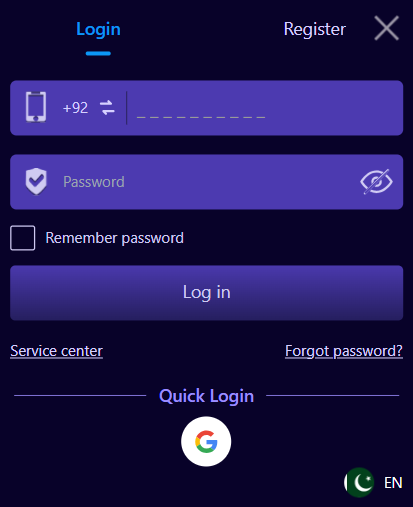
Standard ISB7 Login Steps
- Open the ISB7 app on your Android phone or visit the official ISB7 website
- Tap the Login button at the top of the screen
- The phone number field shows +92 — enter your number after that without the leading zero
- Tap the Password field and enter your password
- Tap the eye icon if you want to see what you are typing
- Tick Remember Password if you are on your personal phone
- Tap Log In
- You are taken directly to the ISB7 home screen
Quick Login via Google
- On the login screen scroll down to the Quick Login section
- Tap the Google icon
- Choose the Google account you used when registering
- You are logged in immediately without entering a password
- This only works if you originally registered or linked your account via Google
ISB7 Login Not Working — The Most Common Causes
Before jumping to specific fixes it helps to understand why ISB7 login fails in the first place. Most of the time it is one of these five reasons.
| Cause | How Common |
| Weak or no internet connection | Very common |
| Wrong password entered | Very common |
| Phone number entered with leading zero | Common |
| App needs updating | Common |
| Account suspended or restricted | Rare |
ISB7 Wrong Password — Checklist and Fix
A wrong password error is the most common login problem. Before reaching for the Forgot Password option go through this checklist because often the fix is something very simple.
Wrong Password Checklist
- Is your caps lock switched on? ISB7 passwords are case sensitive. If you set your password as Ahmed123 entering ahmed123 will fail.
- Tap the eye icon in the password field to make your password visible. Read what you have typed and check it matches exactly what you set when registering.
- Are there any extra spaces before or after your password? Sometimes auto-complete on Android adds a space. Delete the password field content and retype it manually.
- Are you sure you are using the correct phone number? If you have multiple SIM cards make sure you are entering the number you registered with.
- Did you recently change your password? If yes use the new password not the old one.
Move to the Forgot Password section below. Resetting your password takes about two minutes and gets you back in immediately.
ISB7 Forgot Password — How to Reset and Get Back In
If you have genuinely forgotten your ISB7 password the reset process is quick and straightforward. Here is exactly how to do it.
How to Reset Your ISB7 Password
- Open the ISB7 app or visit the ISB7 website
- Tap Login to open the login screen
- Tap the Forgot Password link — it appears below the Log In button on the right side
- Enter your registered Pakistani phone number with the +92 code
- Follow the on-screen instructions to verify your number and set a new password
- Choose a strong new password that you will remember
- Confirm the new password and submit
- You are now able to log in using your phone number and the new password
- Write your new password somewhere safe immediately after resetting it
- Do not share your new password with anyone
- If you use the Remember Password feature on the app it will update automatically to the new password
- If you have the app installed on multiple phones you will need to log in again on each device using the new password
Contact ISB7 live chat support directly through the website. Explain that you cannot access your account and give them your registered phone number. They can help verify your identity and restore your account access.
ISB7 Login Page Not Loading — Causes and Fixes
If the ISB7 login page is not loading at all or is showing a blank screen the problem is almost always connection related. Here are all the fixes in order from most likely to least likely cause.
- Open any other app that needs internet — WhatsApp, YouTube or a browser
- If those also do not load your internet is the problem not ISB7
- Switch from mobile data to WiFi or from WiFi to mobile data
- Turn airplane mode on for 10 seconds then turn it off again to reset your connection
- Swipe the ISB7 app away from your recent apps to fully close it
- Wait five seconds
- Tap the ISB7 icon to reopen it
- This clears any temporary loading issue and usually resolves a blank login screen
- Hold the power button on your phone and select Restart
- Wait for the phone to fully start up again
- Open ISB7 and try logging in
- A restart fixes most temporary app and connection glitches
- Go to your phone Settings then Apps or Application Manager
- Find ISB7 in the list and tap on it
- Tap Storage then Clear Cache
- Do not tap Clear Data as this will log you out and erase saved information
- Open ISB7 again and try logging in
- Visit the official ISB7 website and download the latest version of the APK
- Install the new version over the existing one — you do not need to uninstall first
- Your account data and login details are preserved during an update
- Open the updated app and try logging in again
- If the app login is not working at all open Chrome or any browser on your phone
- Go to the official ISB7 website
- Log in through the browser instead of the app
- If the browser login works the problem is specifically with the app — try reinstalling it
If you are switching between electricity and UPS or generator power your internet connection sometimes drops and takes a moment to reconnect. Wait 30 seconds after power comes back before trying to log in again.
ISB7 Account Access Issues — Restricted or Suspended Accounts
In rare cases a login failure is not about your password or connection but about your account itself. Here are the account-level issues that can prevent login and what to do about them.
If you enter the wrong password several times in a row ISB7 may temporarily lock your login attempts as a security measure. If this happens wait 15 to 30 minutes before trying again. During the wait use the Forgot Password option to reset your password so you are ready with the correct one when the lock lifts.
ISB7 occasionally reviews accounts for security reasons. If your account is under review you will usually see a message explaining this when you try to log in. Contact ISB7 live chat support immediately with your registered phone number and they will explain the situation and resolve it.
If your account is suddenly accessed from a device or location very different from your usual pattern ISB7 may add an extra verification step for security. Follow the on-screen instructions to verify your identity and regain access. This is a feature designed to protect your account from unauthorised access.
Contact ISB7 live chat support immediately. Change your password the moment you can access your account. Never share your login details with anyone including people claiming to be ISB7 support.
How to Login to ISB7 on iPhone and PC
ISB7 Login on iPhone
iPhone users cannot install the ISB7 app because it is Android only. But logging in through the browser works just as well. Open Safari on your iPhone, visit the official ISB7 website and tap Login. Enter your phone number and password exactly as you would on the app. Everything works the same way including your account balance, bonuses and all games.
Bookmark the ISB7 website on your iPhone home screen for quick access. Tap the share button in Safari then tap Add to Home Screen. The ISB7 site will appear as an icon on your home screen just like an app.
ISB7 Login on PC
On a PC you have two options. The easiest is to open any browser — Chrome, Edge or Firefox — visit the official ISB7 website and log in directly. Your account is the same account you use on your phone. The second option is to log in through an Android emulator like BlueStacks or LDPlayer if you prefer the app experience on a bigger screen.
If you are getting login errors on PC specifically try clearing your browser cookies and cache. Go to your browser settings, find Clear Browsing Data, select Cookies and Cached Images, clear them and try logging in again.
Frequently Asked Questions — ISB7 Login Problems Pakistan
How do I login to ISB7?
Why is my ISB7 login not working?
How do I reset my ISB7 password?
Why is the ISB7 login page not loading?
I entered the correct password but ISB7 login still fails — why?
How do I login to ISB7 on iPhone?
My ISB7 account is locked after too many wrong password attempts — what do I do?
How do I contact ISB7 support if I cannot log in?
Back in Your ISB7 Account — What to Do Next
Almost every ISB7 login problem has a solution and most of them are simple to fix in under two minutes. A weak internet connection or a misremembered password account for the vast majority of login failures that Pakistani players experience. The Forgot Password feature resolves the rest.
Once you are back in your account take a moment to write your password in a safe place and enable the Remember Password option on the login screen so you do not face this problem again.
For anything else you need to know about ISB7 visit our complete ISB7 platform guide or check all our guides on the ISB7 guides page.
Read our ISB7 registration guide to create your account in 2 minutes and claim your Rs 1500 welcome bonus using invite code 294746888203.